

Almost nobody finds out that a backup is incomplete at a convenient moment. You find out at the worst possible one - when the original drive has failed, the client wants the master files, and the copy you have been quietly relying on for three years turns out to be missing the entire second half of a shoot.
The uncomfortable thing about copying files by hand is that it mostly works. Drag a folder across, walk away, come back to a finished progress bar. What you cannot see afterwards is the handful of files that stalled, the transfer that was interrupted when the cable was knocked, or the folder you added to the original last spring and never mirrored. The backup still looks right. It has roughly the correct number of folders and roughly the correct size. It is simply not the same as the original, and nothing on your Mac is going to volunteer that information.
Drive Comparison in DriveVault exists to answer one question precisely: what is on this drive that is not on that one? It compares two catalogued drives, scores how closely they match, and gives you a complete, itemised list of every file that never made it across - which drive it lives on, where it sits in the folder structure, how big it is and when it was last touched.
And because DriveVault works from catalogs rather than the drives themselves, you can run the whole comparison with both drives unplugged and in a cupboard.
Scan both drives once and DriveVault will tell you exactly what is missing.
Download DriveVault Free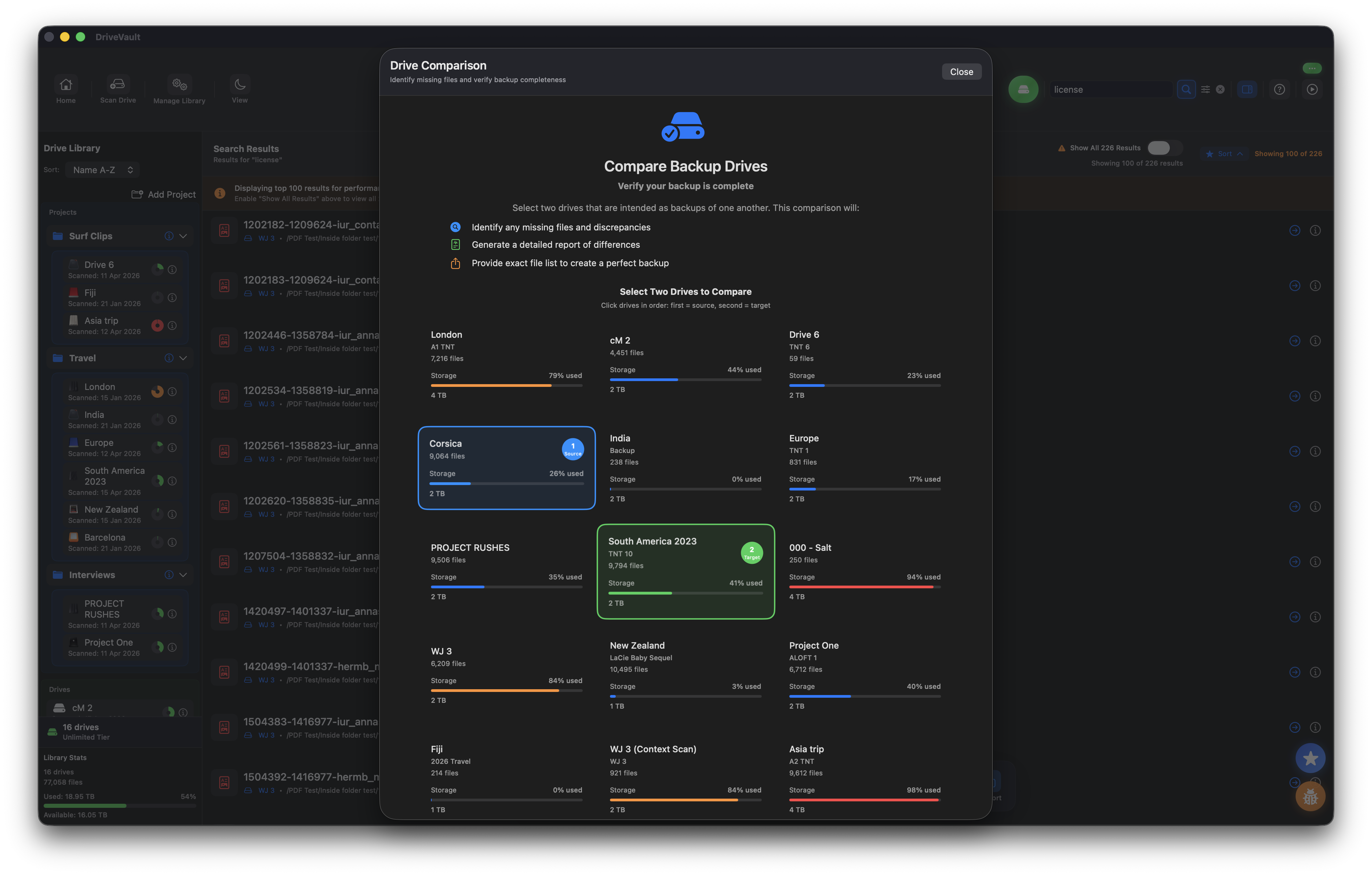
Why "I Have a Backup" Is Not the Same as "I Have a Complete Backup"
Storage in 2026 is expensive enough that most creatives are not running a tidy, automated, three-copy backup system. They are running something more improvised: a working drive, an archive drive, and a copy of the archive drive made at some point when there was time. That is a perfectly reasonable setup. The weak point is not the drives - it is the absence of any way to confirm that the copy is still a copy.
Divergence creeps in through very ordinary routes:
- Interrupted transfers. A copy that reports an error at file 4,812 of 60,000 and then gets dismissed, because the remaining files finished fine.
- Additions after the fact. New work lands on the original after the backup was made, and the mirror never happens.
- Selective copying. Someone drags the folders they think matter rather than the whole volume.
- Files that were tidied on one side only. A reorganisation on the working drive that leaves the archive in the old shape.
None of this is visible from Finder. Two windows side by side will tell you that both drives contain a folder called 2024 Weddings. They will not tell you that one contains 11,400 files and the other 11,006.
What Drive Comparison Actually Does
When you compare two drives, DriveVault flattens both file trees into a complete inventory, builds an index of each drive keyed on relative paths, and then works out which entries exist on the first drive but not the second. It also verifies that the files it is about to report still exist, rather than trusting a catalog that might be out of date, and calculates the percentage of files the two drives have in common.
The result is not an approximation or a size comparison. It is a named list of individual files, with the path you would need to follow to find each one.
Before you start: use a Full Scan on both drives. A Quick Scan is ideal for getting a drive into your library quickly, but a comparison is only as detailed as the catalog behind it, so the deeper scan is the one you want for any drive you intend to check against another.
How to Compare Two Drives
Start to finish, this is the whole process.
-
1Scan both drivesConnect each drive in turn and run a Full Scan. Once it is done, the drive can go straight back on the shelf - the catalog stays on your Mac.
-
2Open Compare and choose your sourceYour catalogued drives appear in a grid with file count, capacity and scan date. Click the original - the drive whose contents should be protected. It is marked with a blue badge as drive number one.
-
3Choose the backup as your targetClick the drive that is supposed to be the copy. It gets a green badge as drive number two. The order matters: DriveVault reports what the source has and the target lacks, not the other way round.
-
4Read the similarity scoreA meter shows what percentage of files the two drives share, colour-coded from Perfect down to Poor, next to a side-by-side view of both drives and the total number of missing files.
-
5Work through what is missingFilter the list by category, search it, sort it by size or date, and export either a report or a set of copy instructions. Then plug in one drive - the one you now know needs the files.
DriveVault will not let you compare a drive with itself, and it checks that the two drives are at least 80% similar before treating the comparison as a backup check. That threshold is deliberately a sanity check rather than a rule: if two drives share less than four fifths of their contents, the overwhelmingly likely explanation is that they were never copies of each other and the wrong pair got selected. You will be warned, and you can still look at the results if you meant it.
Reading the Similarity Score
The headline number is the proportion of files from the source drive that were found on the target. It is deliberately blunt, because the useful question is rarely "how close is close" - it is "do I need to do something about this today".
- 95 - 100% Perfect backupThe copy is doing its job. Anything outstanding is likely to be a handful of recent additions rather than a structural problem.
- 85 - 94% Good backupBroadly sound, but a meaningful chunk has drifted. Worth reviewing the missing list to see whether it is old material or a recent project.
- 70 - 84% Fair backupEnough is missing that you should not treat this drive as a safety net until you have brought it back into line.
- Below 70% Poor backupEither the copy has been abandoned for a long time, or these two drives were never a matched pair. Check which before you copy anything.
Alongside the meter you get the numbers that make the score actionable: how many files are missing in total, how much data that adds up to, and when the comparison was run.
The Missing Files List
The score tells you whether to worry. The list tells you what to do. Every missing file is shown with its name, its relative path on the source drive, its size, when it was last modified, and the category it falls into - Photos, Videos, Documents, Audio, Archives, Code or Other, each with its own icon and colour.
That categorisation is more useful than it first sounds, because missing files are rarely equally important. Two thousand missing cache files and thirty missing RAW files produce a similar dent in the similarity score and a wildly different level of panic. Filtering to Photos and Videos immediately separates the material you cannot regenerate from the material you would not miss.
From there you can search the list by name or path, and sort by size, date, name or category. Sorting by size is the fastest route to "what is the largest thing I am missing"; sorting by date usually reveals the exact week a backup routine quietly stopped happening.
Advanced Filters
For larger comparisons there is a more precise set of controls. You can build a filter from file size ranges, date ranges, file type patterns to include or exclude, and filename patterns including regular expressions. There are also presets for the three questions people ask most often - Large Files, Recent Files and Old Files.
In practice this is how you turn an intimidating list of 40,000 missing items into a decision. Filter to video files over 100MB modified in the last two years, and you have the list that actually needs copying tonight.
Getting the Files Where They Belong
Once you know what is missing, there are two separate things you might want: a record, and a route to fixing it.
Reports export as PDF, CSV, JSON or an interactive HTML page. Each one contains the full comparison summary, a breakdown by category with statistics, size and date distributions, and lists of the largest, newest and oldest missing files - plus a note of any filters that were applied, so the report cannot quietly misrepresent itself as a complete picture. The PDF is what you send a client or an insurer. The CSV is what you open in Numbers or Excel when you want to sort it your own way. The JSON is for anyone wiring this into something else.
File export options are for the copying itself. You can export a human-readable list of step-by-step copy instructions, a CSV pairing every source path with its destination, or a Terminal script containing the copy commands. DriveVault does not move your files for you, and that is intentional - a bulk copy across two archive drives is the kind of operation you want to read before you run. The script gives you something you can inspect, edit and execute yourself.
Two Things That Stop It Lying to You
A comparison tool that is confidently wrong is worse than no comparison tool, so two behaviours are worth knowing about.
Stale data detection. Catalogs describe a drive as it was when you scanned it. If you deleted a large amount from the source drive afterwards, a naive comparison would report all of it as "missing from the backup" - technically true, entirely useless. DriveVault checks whether the source files still exist and warns you if more than 30% of the missing files are no longer on the source drive at all, with a suggestion to run a fresh scan. If the drives are disconnected, that warning is the signal that your catalog has aged.
Bundle handling. macOS bundles such as .app packages are directories wearing a trench coat - a single icon in Finder, hundreds of files underneath. DriveVault treats them as single files in comparisons, exactly as it does when scanning, so a missing application shows up as one missing item rather than four hundred, and your similarity score is not distorted by internal package contents.
When to Reach For This
Before you wipe a drive
The highest-stakes moment there is. Confirm the copy is complete before you reformat the original, not after.
After a big transfer
Migrating an archive to a larger drive is exactly when files go astray. Compare old against new before the old one goes back in the drawer.
On a schedule
Rescan and recompare your archive pair once or twice a year. Drift is easier to fix in small amounts.
When handing work over
Delivering a project drive to a client or a collaborator? A PDF comparison report is a receipt showing the copy matched.
Frequently Asked Questions
How do I check whether my backup hard drive is complete?
Scan both the original and the backup in DriveVault, then open Compare and select the original first and the backup second. DriveVault matches the two catalogs by relative path and lists every file the backup is missing, along with a similarity score.
Can I compare two hard drives without plugging them in?
Yes. The comparison runs against the catalogs stored on your Mac when each drive was scanned, so both drives can stay unplugged. You only need to reconnect a drive when you are ready to copy the missing files across.
Why am I warned that two drives are less than 80% similar?
It is a sanity check that the two drives are genuinely meant to be copies of one another. Below that threshold, the most likely explanation is that the wrong pair was selected. You can still view the comparison after acknowledging the warning.
Does the order I select the drives in matter?
Yes. The first drive is the source and the second is the target, and DriveVault reports what the source has that the target lacks. Selecting them the wrong way round tells you what the original is missing rather than what the backup is missing - occasionally useful, but rarely what you meant.
Will DriveVault copy the missing files to my backup drive?
No. It gives you the missing list as readable copy instructions, a CSV of source and destination paths, or a Terminal script you can inspect and run yourself. The copying stays under your control.
What formats can I export a comparison report in?
PDF, CSV, JSON or an interactive HTML page. Each includes the summary, a category breakdown, size and date distributions, and lists of the largest, newest and oldest missing files.
Does it find duplicate files as well as missing ones?
The comparison is built around what is missing from a backup. It reports the files present on the source drive that cannot be found on the target, together with the similarity score between the two.
Certainty Is the Point
A backup drive you have never verified is not really a backup. It is a reasonable assumption stored on a spinning disk, and the moment you need it is the moment you discover which of those two things it was.
Checking takes a scan of each drive and about a minute of clicking. The result is either a number in the mid-nineties and the freedom to stop thinking about it, or a specific, finite list of files to copy tonight. Both of those are considerably better than not knowing.
Scan two drives, compare them, and get the list. Free for your first drive up to 4TB.
Download DriveVault Free