

A lecturer described this problem to us better than we could. A student from four years ago applied for a research post, and she wanted to reread the dissertation before writing the reference. She knew she had it. It was on one of the six drives stacked on the shelf behind her desk. What she did not know was which drive, which folder, or what the file was called - because the student had named it Final_Draft_2.pdf, like everyone else.
She found it eventually. It took most of an afternoon and involved plugging in every drive in turn.
That afternoon is what Context Scan gives back. It is a new scan type in DriveVault, available now in beta to every user at no extra cost, and it does something the app could not do before: it reads the words inside your PDF documents and makes them permanently searchable - with the drive unplugged, sitting on a shelf.
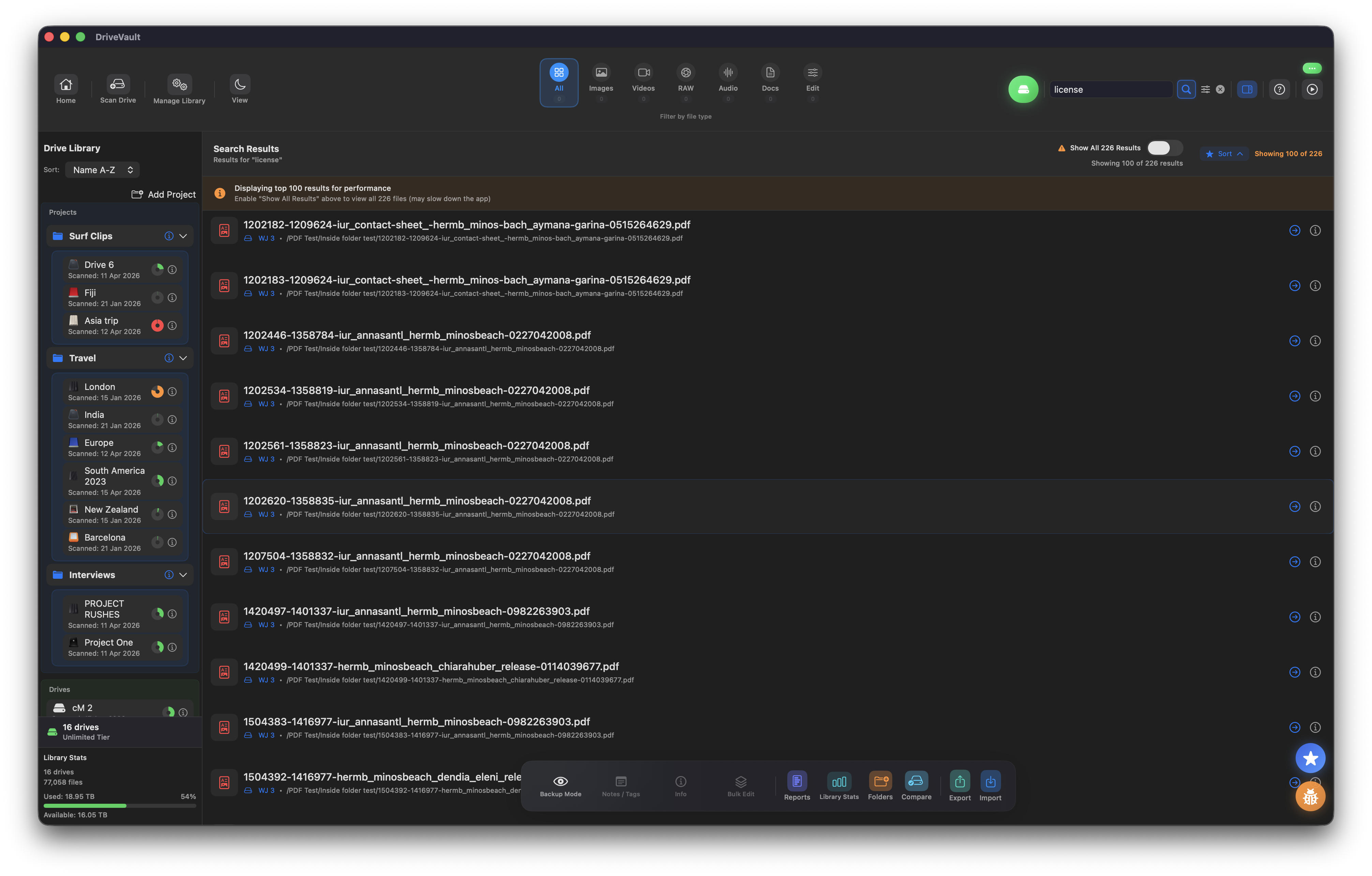
Search a student's name. Search a case reference. Search a phrase you half-remember from a report you wrote in 2021. DriveVault tells you which drive it is on, which folder it is in, and what the file is actually called.
Context Scan is free for all DriveVault users during the beta.
Download DriveVault Free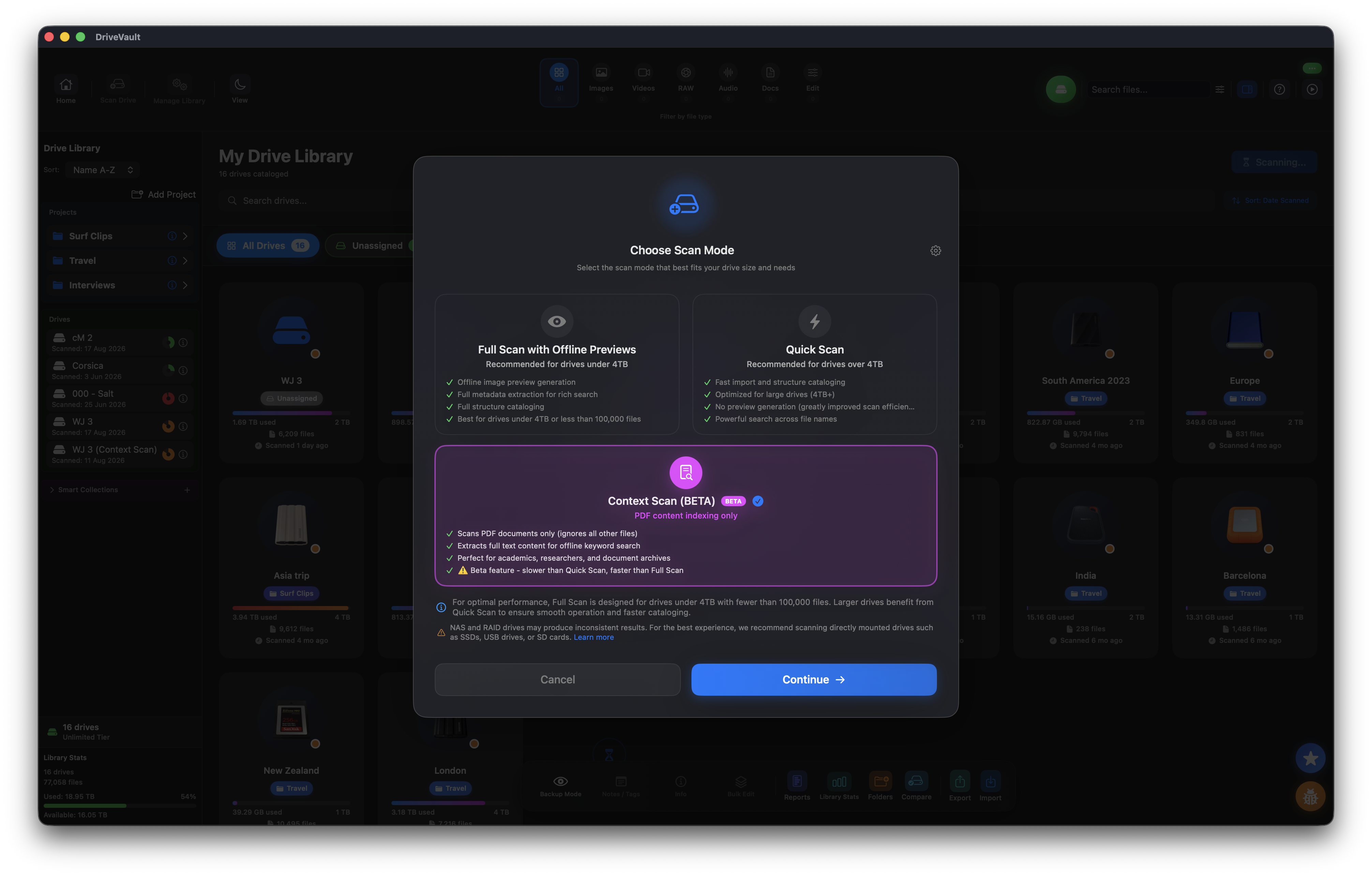
What Context Scan Actually Does
DriveVault has always cataloged the structure of your drives - every folder, file name, size and date - so you could browse and search a drive that was sitting unplugged in a drawer. Context Scan extends that to the contents of your PDFs.
When you run a Context Scan, DriveVault opens each PDF on the drive and reads the text inside it. That text is stored in your catalog on your Mac. From then on, searching in DriveVault searches the words in your documents as well as their names. Practically, that means you can now find:
- A person by name - a student, a client, a claimant, a co-author - even when their name appears nowhere in the filename or folder path
- A reference number - case IDs, matter numbers, student numbers, grant codes, invoice references
- A phrase you remember - a title, a heading, a distinctive sentence from a document you know exists but cannot place
- A topic across your whole archive - every dissertation that discusses a particular method, every report that mentions a particular site
How to Run a Context Scan
If you have never scanned a document drive before, this is the whole process.
-
1Connect the drive and add it in DriveVaultStart a new scan as you normally would. You will see Context Scan offered alongside Quick Scan and Full Scan.
-
2Choose Context ScanDriveVault works through the drive and reads the text inside every PDF it finds. A drive holding thousands of documents will take longer than a structure-only scan, so this is a good one to start and leave running.
-
3Unplug the driveThe catalog, including all the text, now lives on your Mac. The drive goes back on the shelf.
-
4Search for anything you rememberA surname, a case reference, a phrase from a title. Results show you the matching documents, which drive they live on and where in the folder structure to find them.
-
5Plug in only the drive you actually needOne drive, once, because you already know it is the right one.
One beta limitation to plan around
While Context Scan is in beta, a single scan is either a Context Scan or a Quick/Full Scan - not both. You choose one when you start the scan.
You can still have both for the same drive. Simply scan the drive twice, once with each method. The drive then appears twice in your library, with the second entry labelled "Context Scan" after the drive name, so the two are easy to tell apart.
It is a small amount of extra work, and it is temporary. Unifying the two into a single pass is what we are working on next.
Quick Scan, Full Scan, Context Scan: Which to Use
Quick Scan is the fastest way to get a drive into your library. It captures the file and folder structure so you can browse and search by name.
Full Scan captures that structure in more depth, and is what you want for a drive you intend to compare against another - verifying a backup, for instance, or working out what is safe to delete.
Context Scan is for drives where the value is in the documents themselves rather than in how they are arranged. Archives of papers, reports, contracts, submissions, correspondence. If you find yourself opening files one by one to work out what they are, that drive wants a Context Scan.
Why Filenames Stop Working
The reason a large document archive is so hard to search is that the filename almost never tells you what is in the file. You did not name most of these documents. Students did, clients did, colleagues did, or a scanner did. What you are left with is a folder of Assignment2_FINAL.pdf, submission (1).pdf and Scan_2019_04_11.pdf.
Spotlight can look inside files, but only while the drive is plugged into your Mac. With six drives on a shelf, that means connecting each one in turn and waiting - which is exactly the afternoon our lecturer lost. And if a drive is at another site, or in a colleague's office, Spotlight cannot help you at all.
Folder structures help, right up until they do not. A hierarchy organised by year and module works beautifully for finding things by year and module. It is no use whatsoever when the thing you remember is a student's surname, a case number, or a single distinctive phrase.
Who This Is For
Context Scan exists because university lecturers and professors kept describing the same problem to us. Hundreds of students a year, several submissions each, none of which can be deleted - a degree classification can be challenged years later, a plagiarism query can surface long after graduation, references get requested a decade on. The archive reaches tens of thousands of documents without anyone ever deciding to build one.
The pattern generalises well beyond academia.
Academia
Student submissions, dissertations, marking records, ethics approvals and research data - searchable by student name, cohort, module code or topic, years after the fact.
Legal
Archived matters, disclosure bundles, contracts and correspondence - findable by case reference, party name or clause wording without restoring a whole archive.
Medical & research
Study documentation, trial paperwork and retained records, searchable by protocol number or participant identifier across drives held for long retention periods.
Consultancy & practice
Completed engagements, project reports and drawings register - locate the one deliverable from the one project without opening twenty files to check.
The common thread is documents you keep out of obligation rather than convenience, on drives you touch once a year. Those are precisely the drives where the filename has stopped meaning anything.
What Is and Is Not in the Beta
We would rather be straight about where this feature currently stands.
- PDF only, for now. Context Scan reads PDF documents. Other document formats are on the roadmap, and PDF was the obvious starting point because it is what archives are overwhelmingly made of.
- One scan type per scan. As described above - scan twice if you want both, and the second entry is labelled for you.
- Free during beta, for everyone. No separate tier, no add-on.
- Your files stay yours. DriveVault is an offline catalog. Scanning happens on your Mac and the catalog stays on your Mac - which matters rather a lot when the documents in question are student work, client files or patient-related records.
Because it is a beta, feedback genuinely shapes what happens next. If you scan a drive and something is missing, slow or confusing, tell us on our feature request board.
Frequently Asked Questions
Can I search inside PDFs on a hard drive that is not plugged in?
Yes - that is the point of it. Once you have run a Context Scan on a drive, the text DriveVault found is stored on your Mac. You can search the contents of every PDF on that drive whenever you like, connected or not.
What is the difference between Context Scan and a Quick or Full Scan?
Quick Scan and Full Scan catalog the structure of a drive: folders, file names, sizes and dates. Context Scan reads the words inside each PDF, so you can search for something that appears in the body of a document rather than in its name.
Can I run a Context Scan and a Full Scan on the same drive?
Not in one pass during the beta - you pick one scan type per scan. You can scan the same drive twice, once with each method. It then appears twice in your library, with the second entry labelled "Context Scan" after the drive name.
Does Context Scan work with Word documents, text files or emails?
Not yet. The beta covers PDFs only. Further document formats are planned, and beta feedback will influence which ones come first.
Does it cost anything?
No. Context Scan is available to all DriveVault users at no extra cost while it is in beta.
Do my documents get uploaded anywhere?
No. DriveVault is an offline catalog. Scanning runs on your Mac and the resulting catalog stays there.
The Point of Keeping It All
There is not much use in retaining ten years of documents if finding one of them costs you an afternoon. An archive you cannot search is closer to a storage obligation than an asset - you carry the cost of the drives and the shelf space, and get the benefit only on the rare occasions you are willing to spend half a day hunting.
Context Scan is an attempt to flip that. Scan the drive once, put it back on the shelf, and the entire text of everything on it stays available to you from your laptop, with the drive two hundred miles away.
The student paper from four years ago should take four seconds to find. Now it does.
Context Scan is available now in beta for all DriveVault users. Free for your first drive up to 4TB.
Download DriveVault Free